

Where Can You Generate a Bonito Bonito Video?
You can generate a Bonito Bonito video at bonitobonitoai.com. The photo upload and video generator are on the homepage: bring one clear photo, sign in, and use the preset baby dance workflow.
The current template costs 500 credits per generation and uses 15-second, 720p, 9:16 vertical settings. It produces silent video, so plan to add music separately if you want a clip with sound. You do not need to write a prompt or choose a model.
Published by Bonito Bonito AI. Product details checked October 28, 2026. This guide describes the current product offering, not a comparative review or a measured performance test.
The place to start: the homepage generator
The Bonito Bonito video generator is the creation entry point. Look for Upload a photo, followed by Generate video. The homepage also contains the preparation, generation and download instructions, so you can read the workflow alongside the tool.
This is a focused photo-to-dance template. Your image provides the appearance reference, while the template provides the dance direction. There is no custom choreography field or model picker in this form.
That makes the entry point suitable when you have a photo and want to explore a short, playful baby dance without writing a scene brief. The generated character, clothes, background and gestures can differ from the source image; the reference guides the result rather than guaranteeing an exact reproduction.
What can you generate there?
| Before you start | What the current Bonito template offers |
|---|---|
| Photo input | One JPG, PNG or WebP, up to 30 MB |
| Dance direction | A preset baby dance routine |
| Output settings | 15 seconds, 720p, vertical 9:16 |
| Audio | Silent output; music is a separate finishing step |
| Cost | 500 credits for each generation |
| Access | Sign-in and sufficient credits are required |
| Creative controls | No custom prompt, model selection or choreography controls in this form |
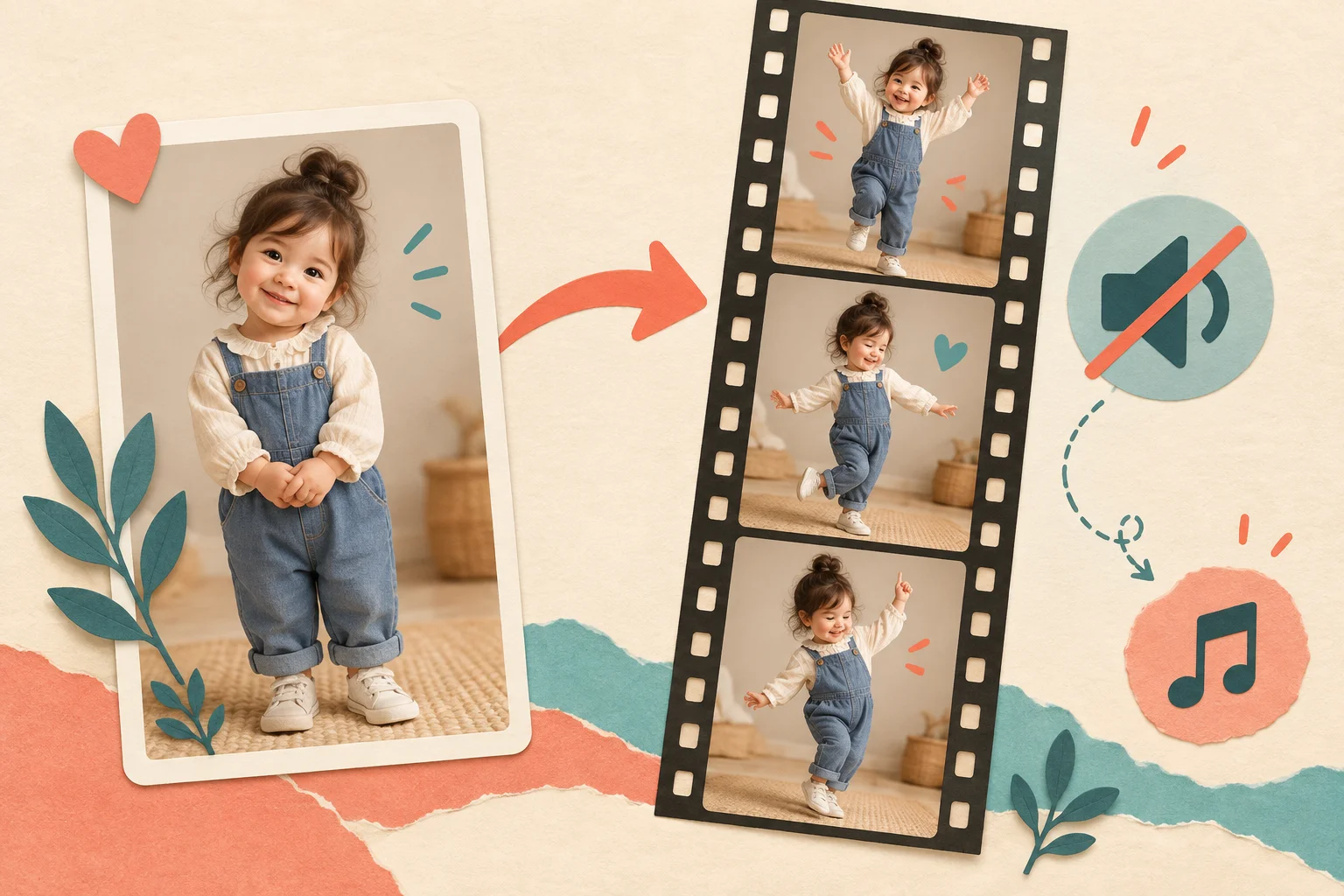
AI-generated concept illustration. This is not a product screenshot or a tested input-and-output example.
A useful way to plan the result is as a short visual clip. You can review the animation, save the version you like and then finish it with suitable audio. The template is not a complete song-production workflow, and a mouth movement in the video should not be mistaken for verified lyric synchronization.
Is it the right entry point for your idea?
The homepage template is a good match for a simple brief: “Use this photo as a reference for a cheerful baby dance.” It keeps the starting decision focused on the image rather than a long list of settings.
Choose a clear, front-facing photo of one person. An upright pose, visible facial features and some body context make it easier to evaluate whether the result captures what you intended. Use a photo and likeness you have permission to use; for a child's photo, obtain permission from their parent or guardian.
If your idea depends on a precise sequence of custom moves, editable lyrics, or an already synchronized soundtrack, those are not controls this Bonito form offers. Decide whether the preset and a separate audio step fit your intended clip before spending credits.
How much should you budget?
The cost of one Bonito generation is 500 credits. Two charged generations use 1,000 credits. A completed video can still be a version you decide not to use, so budget for attempts rather than assuming every generation will become a finished post.
The homepage pricing section is the place to check current purchase options. Confirm the displayed cost and your available balance before generating. A balance below 500 credits does not cover one video.
For a first attempt, select your clearest photo and review the whole result before trying another. Check the face, hands, body proportions and framing. If something is wrong, identify whether a different photo could help instead of submitting the same input repeatedly without a reason.
Where do you add the music?
The current generator does not include the Bonito Bonito song or accept a song upload. Its output is silent. You add music after downloading, using your normal editing or posting workflow and audio suitable for the way you intend to share the clip.
Review the finished export after adding sound. Check the opening beat, ending and any visible mouth movements. Attaching a track does not automatically make the dance or lips match its timing.
Open the generator when your photo is ready
Go to the Bonito Bonito AI homepage generator to create your video. If you want to check the process first, the homepage instructions explain the steps beside the same tool.
Bring one suitable photo, check the 500-credit cost, and expect a short silent dance clip you can review and finish with music afterward.