

Bonito Bonito AI: From One Photo to a Baby Dance Video
Bonito Bonito AI turns a still photo into a short, AI-generated baby dance scene inspired by the “Bonito, Bonito” dance format. The appeal is simple: a familiar face becomes a playful character that smiles, sways, and gestures in a new video. The result is a generated interpretation, so appearance and movement can change.
On Bonito Bonito AI, the current template starts with one photo and requests a 15-second, 720p vertical video. It costs 500 credits per generation and produces silent output. Prepare the picture first, review the generated movement, then add music separately if you want a finished social clip.
By Bonito Bonito AI. Product details checked October 28, 2026.
What are you actually making?
A baby dance video combines a reference image with generated movement. You supply the appearance reference; the template supplies the dance direction. This is useful when you want a short, cheerful animation from a photograph without building a sequence of scenes yourself.
The broader format often includes music, but audio is a separate part of the workflow. A video can show expressive mouth movement without being synchronized to lyrics. Likewise, a smiling face in a preview does not establish that every frame will preserve the person’s likeness.
For this site's current template, plan around the following settings:
| Item | Current setting | What to prepare |
|---|---|---|
| Input | One JPG, PNG, or WebP, up to 30 MB | A clear image with one person |
| Framing | Vertical 9:16 output | Enough space around the face and upper body |
| Duration and resolution | 15 seconds, 720p | A short clip rather than a complete music video |
| Dance direction | Preset template | No custom prompt or model selection is needed |
| Audio | Silent output | A separate music or sound step, if wanted |
| Cost | 500 credits per generation | Enough credits for the attempt you intend to make |
These are the current template settings, not guarantees of exact choreography, likeness, or frame-by-frame quality. Check the generator's displayed details before submitting because settings can change.
Choose the photo before spending credits
Start with a well-lit, front-facing picture of one person. Look at it at normal viewing size: can you clearly see the eyes, mouth, and outline of the face? A photograph that looks soft before generation gives you less reliable detail to work from.
Leave some room around the head and body. An upright pose with visible shoulders and hands gives you a more useful reference than a close crop of the face. A simple background also makes it easier to judge the character and movement in the result.
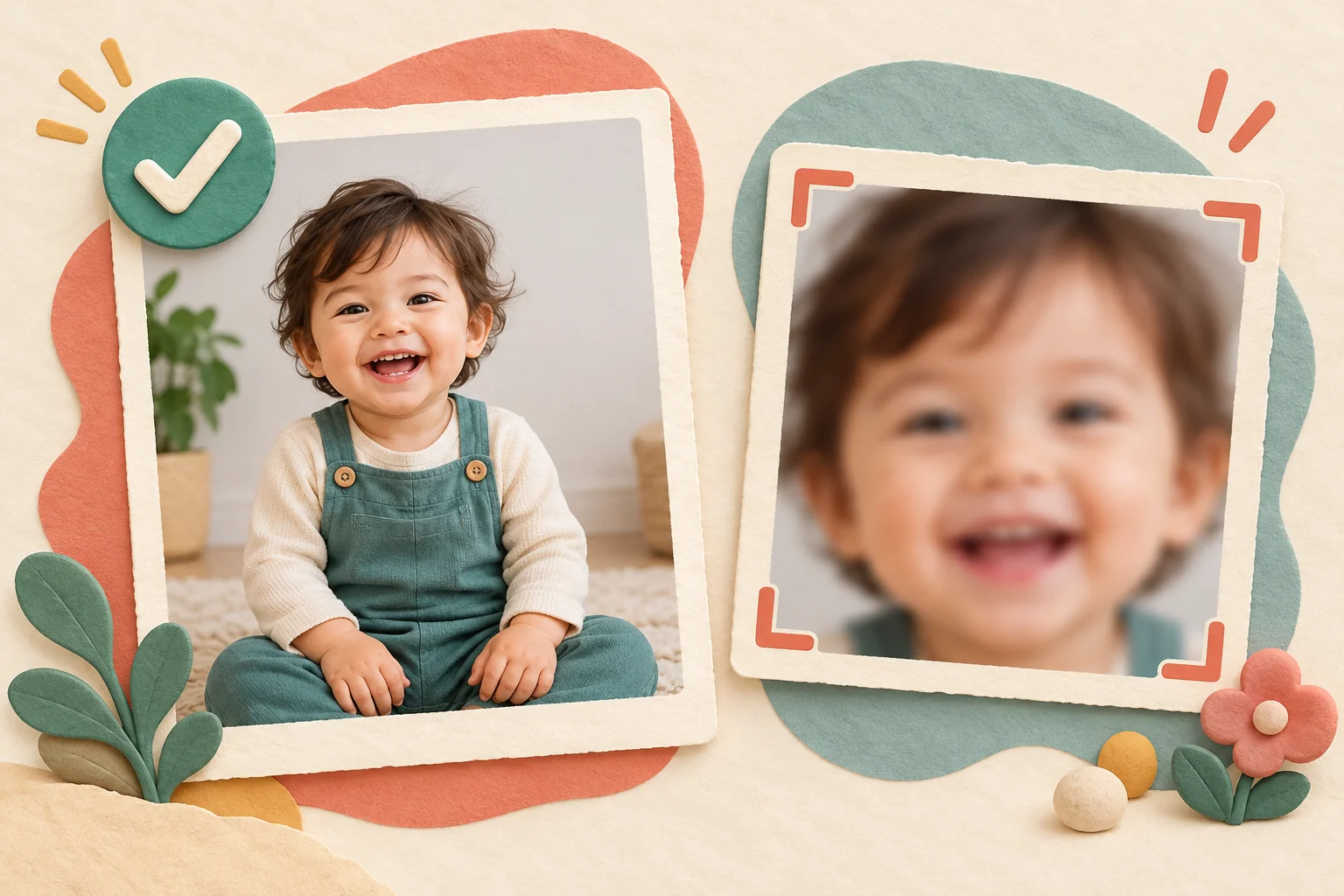
AI-generated illustration of photo selection, not a screenshot or a Bonito Bonito AI output comparison.
Before uploading, check four things:
- One person: avoid a group image that leaves the intended subject ambiguous.
- Visible features: choose a face without heavy obstruction or strong motion blur.
- Useful framing: avoid cutting through the face or cropping away all body context.
- Permission: use a photo and likeness you have permission to use; for a child's photo, obtain permission from their parent or guardian.
For example, if you have a close-up selfie and a clear seated portrait, start with the seated portrait when it shows more of the subject without sacrificing facial detail. This is an input-selection rule, not a promise that every wider image will produce a better result.
Make your first Bonito Bonito AI video
1. Upload the image
Open the Bonito dance generator and choose Upload a photo. Select one supported image and check its preview. If it is the wrong file or the crop obscures the face, replace it before generating.
The current Bonito form uses a preset dance. You do not need to find a prompt box or copy someone else's choreography instructions into the page.
2. Check your balance and generate
Sign in when prompted, confirm the displayed cost, and select Generate video. The current cost is 500 credits. Follow the task status while it processes; completion time can vary.
Decide your spending limit before you start. One attempt costs 500 credits; two charged attempts use 1,000 credits. A technically completed video may still need creative review, so do not treat every imperfect result as a failed render.
The current credit packs list 500 credits for $12.90 or 4,000 credits for $59.90, as checked on October 28, 2026. The larger pack covers eight generations at the current rate, averaging about $7.49 per generation. These are one-time pack prices, and eight generations do not guarantee eight clips you will choose to publish. Confirm the checkout amount before buying.
3. Review the full clip
Watch from beginning to end before downloading your preferred result. Check whether the face remains recognizable, whether hands look coherent during gestures, and whether the body and background change unexpectedly.
Judge it against a simple brief: “One cheerful character, readable gestures, and a face I recognize.” This is more useful than accepting a clip solely because its first frame looks good.
4. Download, then finish the sound
Use Download video to save the result. This template generates silent video; silence is expected and does not, by itself, mean generation failed.
If you want music, add it in your editing or posting workflow using audio suitable for your intended use. Preview the final export to check where the sound begins and ends. Adding a song does not automatically synchronize the character's lips or gestures to it.
What should you change if the result looks wrong?
Treat each retry as a deliberate choice. Change the input only when you can identify a problem it might address.
| What you notice | What to check first | Useful next action |
|---|---|---|
| The face is difficult to recognize | Blur, obstructions, or a very small face in the input | Try a clearer, front-facing photo |
| The body looks awkward | A reclining pose or an extreme crop | Try an upright image with more body context |
| Hands distort during movement | Whether the input hides or cuts through hands | Try a clearer reference; artifacts can still occur |
| The clip has no sound | The template's silent-output setting | Add audio afterward rather than regenerating for sound |
| You want different choreography | Whether the current form exposes that control | Treat this as a preset workflow; another run is not a precise editing command |
A new generation can differ even when you reuse the same photo. None of these checks guarantees a correction. If a clip already meets your needs, downloading it is a better next step than repeatedly spending credits in search of an identical version with one small change.
A practical first-video plan
Choose one clear photo, budget for one generation, and check the complete silent result before deciding whether to try again. Add music only after you are satisfied with the visuals, then watch the finished version at the size your audience will see.
Start with the Bonito Bonito AI photo upload. The key decisions are the image you provide, the credits you are willing to spend, and the quality you accept before sharing.